
Contribute
Table of Contents
- To Developers
- To Users
To Developers
GIT Repository
Access the digiKam source code repository via the GIT page on the GitLab/KDE-Invent infrastructure.
Submitting Patches
Patches must be based on the latest git/master revision (not a stable release or old beta version).
How to Contribute
- Preferred Method: Create a Pull Request (PR) on GitLab/KDE-Invent using a fork of the project. Online discussions with developers are supported.
- Alternative Method: Generate a patch file and attach it to a Bugzilla entry:
git diff HEAD > mydiff.patch
Note: Avoid using mailing lists or private emails for patch submissions.
Checking for Memory Leaks
To detect memory leaks in digiKam on Linux, use Valgrind:
valgrind --tool=memcheck --leak-check=full --error-limit=no digikam
Report the output to the developers.
To Users
The easiest way to contribute is to spread the word about digiKam. You can also:
- Test digiKam and report bugs.
- Submit feature requests.
- Join the digikam-users mailing list to help other users.
Reporting Bugs and Submitting Feature Requests
Use the bug tracking system for all bug reports and feature requests. For more details, visit the support page.
Freezes and Other Run-Time Issues
Linux Host
Run digiKam from the terminal to capture debug traces. Enable debug logging first:
export QT_LOGGING_RULES="digikam*=true"
digikam
Windows Host
Windows does not output application logs to the terminal. Use DebugView to capture logs.
If digiKam starts
- Go to Settings → Configure digiKam → Miscellaneous → System.
- Enable Internal debug logging.
If digiKam does not start
- Open System Properties → Environment Variables.
- Add a new user variable:
- Name:
QT_LOGGING_RULES - Value:
digikam*=true
- Name:
- Run DebugView, then launch digiKam.
macOS Host
Run digiKam from the terminal to view debug traces:
export QT_LOGGING_RULES="digikam*=true"
/Applications/digiKam.org/digikam.app/Contents/MacOS/digikam
Dealing with Crashes in digiKam
Linux Host Using GDB
Native Package
- Ensure digiKam is compiled with debug symbols. Install the debug package if using a distribution package.
- Launch digiKam with GDB:
gdb digikam (gdb) catch throw (gdb) run - If digiKam crashes or freezes, generate a backtrace:Copy the backtrace and exit GDB:
(gdb) bt(gdb) quit
AppImage Bundle
- Use the
-debugversion of the AppImage. - Extract the AppImage:
./digikam-8.7.0-x86-64-debug.appimage --appimage-extract - Run the extracted AppImage in debug mode:
./squashfs-root/AppRun debug - Attach GDB to the process using the provided command below. Replace
/path/to/squashfs-rootby the absolute path where is extracted the AppImage:sudo gdb "/path/to/squashfs-root/usr/bin/digikam" -p <PID> -ex "catch throw" -ex "set sysroot /path/to/squashfs-root" -ex "set solib-search-path /path/to/squashfs-root/usr/lib" -ex c
Windows Host
Using Visual Studio
- Install Visual Studio Community.
- Attach the debugger to the running
digikam.exeprocess via Debug → Attach to Process. - Reproduce the crash and check the Stack View for the backtrace.
Using QtCreator
- Install QtCreator.
- Run digiKam in debug mode via Debug → Start Debugging → Start and Debug External Application.
- Enter the path to
digikam.exe(e.g.,C:\Program Files\digiKam\digikam.exe).
macOS Host
- Install Xcode (includes
lldb). - Run digiKam in the debugger:
lldb /Applications/digiKam.org/digikam.app/Contents/MacOS/digikam (lldb) r - Reproduce the crash and generate a backtrace:
(lldb) bt
Note: Use the -debug version of the PKG bundle for full debug symbols.
Application Translations
To contribute to digiKam’s internationalization:
- Contact the KDE Translation Teams.
- Read the Translation HOWTO.
- Switch languages in digiKam via Settings → Configure Languages.
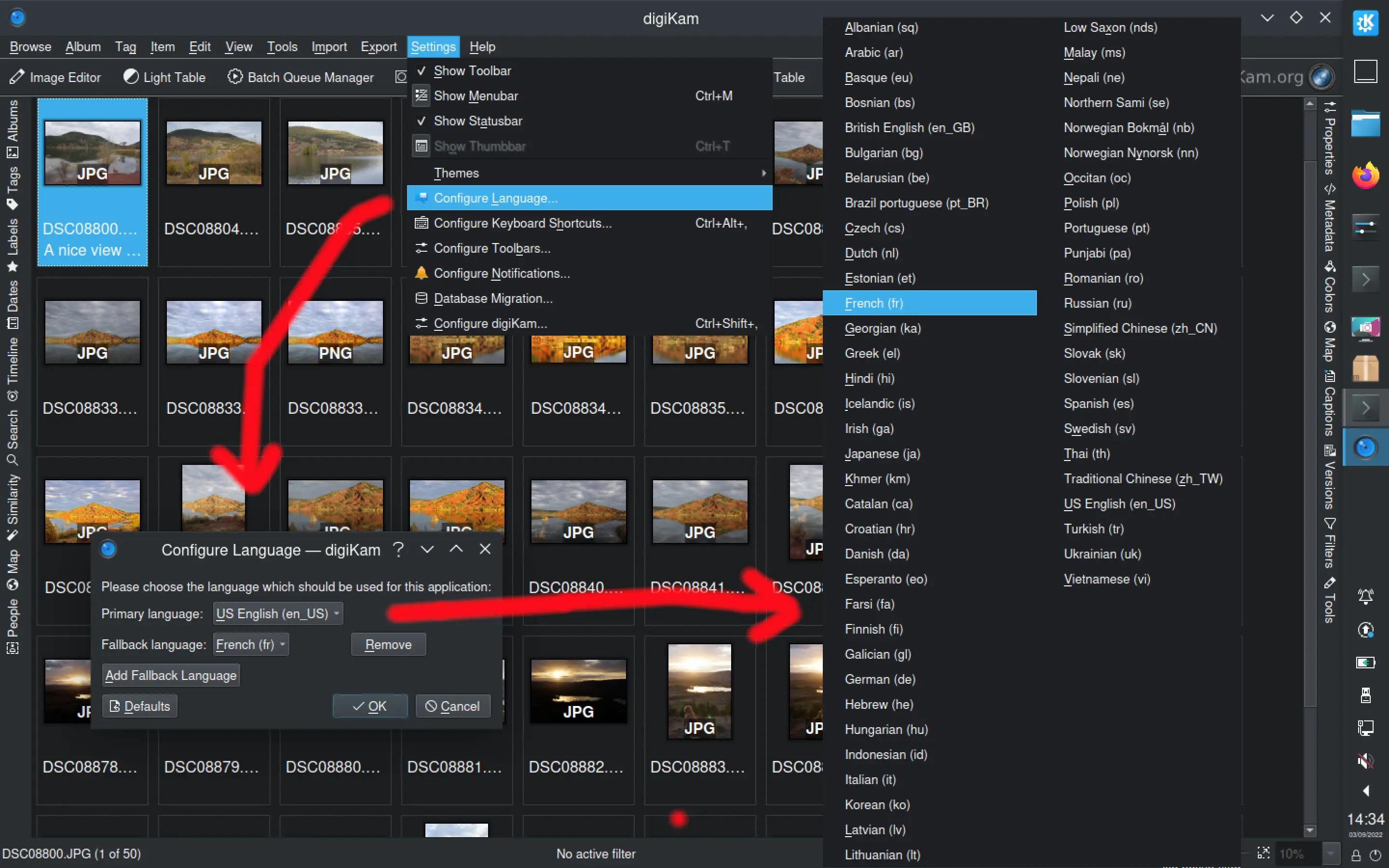
Writing and Translating the Documentation
Help with writing or translating the documentation is always welcome. The documentation uses Sphinx and ReStructuredText.
- Contact: digiKam-devel mailing list
- Guide: README
Picture Samples
We need RAW, TIFF, HEIF, and JPEG files from various manufacturers (Canon, Nikon, Sony, etc.) to improve metadata support. We also welcome sample files with IPTC/XMP metadata from other applications (e.g., Adobe Photoshop).
Splash Screens and Background Photo
Photographers can submit their best photos for use as digiKam splash screens or background images. For details, visit this page.
